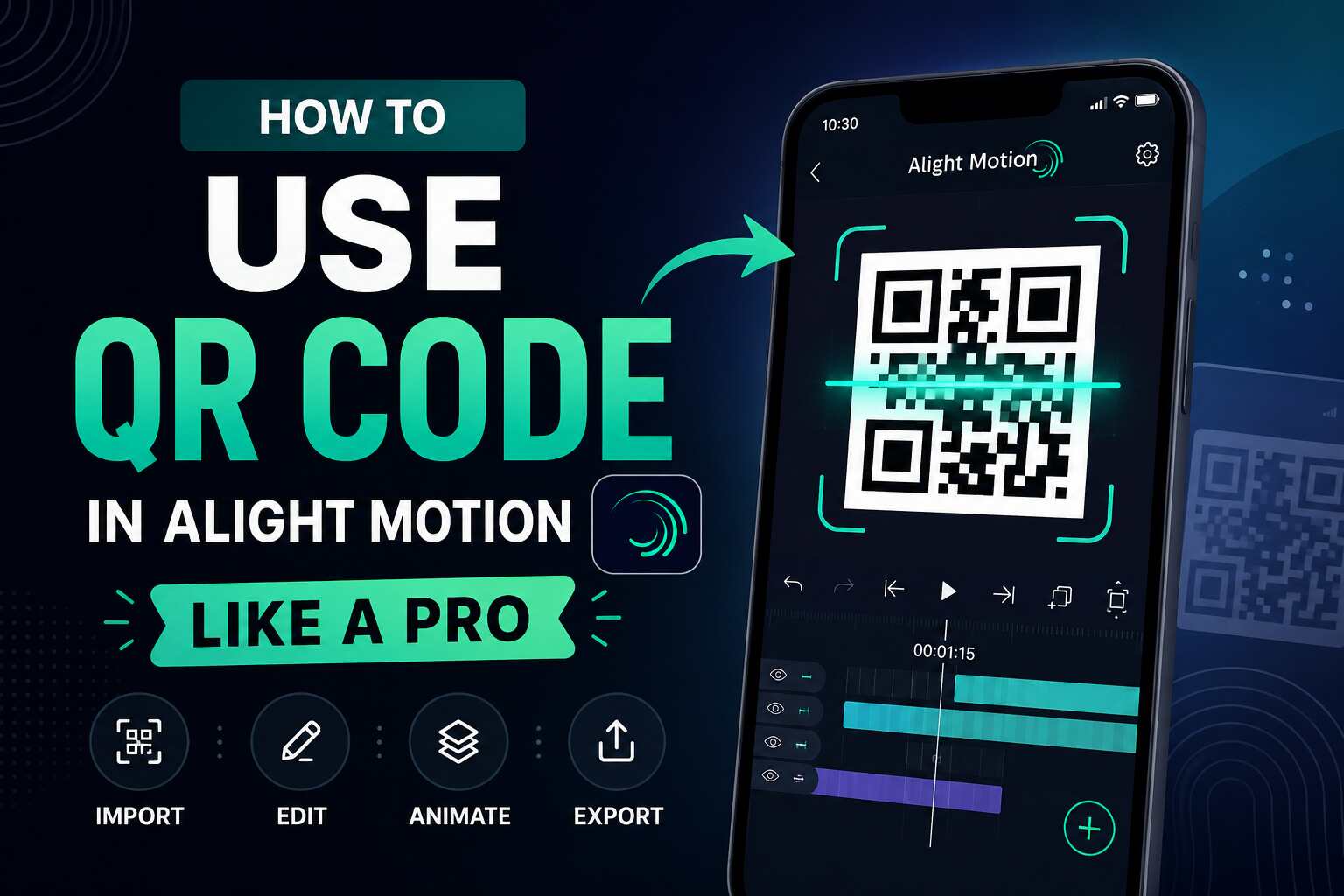
How to Use QR Code in Alight Motion Like a Pro
Learn how to use QR Code in Alight Motion for presets, effects, and editing styles. Discover easy steps, tips, fixes, and creative uses for beginners.
Many Alight Motion users struggle to apply trending effects and presets because they do not know how QR codes work. Some people scan the wrong code, face import errors, or cannot find where to use the QR feature.
The good news is that Alight Motion makes it very easy to use QR codes for presets, transitions, effects, and project files. With the right method, you can instantly import professional editing styles in seconds.
Introduction
Alight Motion is an extremely popular mobile video editor for motion graphics, animation and transitions, and professional video editing. The QR code import system is another feature that is strong within the app.
QR codes in Alight Motion are similar to shortcuts. Users can skip the process of manually creating effects, animations and presets from the ground up and just scan a QR code to have editing settings automatically imported into their project.
This is the feature that is particularly liked by:
- Content creators
- TikTok editors
- Instagram reel makers
- YouTube short creators
- Motion graphic beginners
- QR codes can also be beneficial to beginners who need to make professional edits in a timely fashion.
What Is a QR Code in Alight Motion?
In Alight Motion, a QR code is a picture that can be scanned and contains any project data, presets, effects, transitions, or editing templates.
The QR code is automatically imported when scanned within the app:
- Effects
- Color grading
- Motion presets
- Text animations
- Transition styles
- Project templates
- This enables users to duplicate popular editing styles in just one scan.
How to Use QR Code in Alight Motion
Take the time to carefully follow these simple steps.
Step 1: Download the QR Code Image
First, save the QR code image to your phone gallery.
Make sure:
- The image is clear
- The QR code is not blurred
- The entire code is shown.
- The images might be blurry and hence may not scan.
Step 2: Open Alight Motion
Launch Alight Motion on your smartphone.
Ensure the app is updated to get better QR support and import problems.
Step 3: Go to the Project Section
Open an existing project or start a new project.
Most QR presets are used in the inside:
Effect layers
Text layers
Shape layers
Transition layers
Step 4: Tap the Import Option
Look for:
- Import button
- Preset option
- QR scanner feature
- The place can vary in different versions.
Step 5: Scan the QR Code
Choose:
Scan from gallery
or
Scan using camera
Choose the image that was saved with the QR code.
The preset will be automatically processed in the app.
Step 6: Apply the Preset
After scanning:
- The effect imports were automatically applied.
- When you create a setting, it will show up in your layer.
- Colors, speed, or animation can be customized.
- Your QR preset is now set
Types of QR Codes Used in Alight Motion
Transition QR Codes:
Shake transitions
Zoom effects
Blur transitions
Spin animations
Smooth transition and stylish scene change between video clips by using transition QR codes. The presets are designed to enhance the appearance of videos in an editor without requiring manual work. Transition QR codes are very popular among TikTok and Instagram creators to make trendy and fast-paced edits in a matter of moments.
Effect QR Codes:
Glow effects
RGB effects
Flash effects
Velocity effects
Effect QR codes makes videos pretty by adding creative visual effects. They enhance the entire visual style of edits with lighting, motion, and cinematic styles. The QR presets are highly sought-after for gamers, anime enthusiasts, and social media creators, as they add visual appeal and grab attention in videos.
Text Animation QR Codes:
Intro text animations
Lyrics effects
Gaming title styles
Social media captions
With the help of text animation QR codes, users can create appealing animated text in their videos. These presets will be helpful for creating modern and professional intros, captions, lyric videos, and titles. These QR codes are used by beginners as they save time and give instantly pre-made text designs.
Color Grading QR Codes
Cinematic filters
Dark aesthetic tones
Warm color effects
Moody editing styles
Color Grading QR codes is used to enhance video colors and to set up various video moods. These settings will guide editors to a cinematic, aesthetic or professional look in a single scan. They are common in reels, vlogs and short videos to make content visually appealing.
Best Ways to Find Alight Motion QR Codes
There are free QR presets available to share online for many creators.
1.YouTube
There are sometimes QR codes available for download in the description of YouTube tutorials.
- Search topics like:
- Alight Motion QR presets
- Trending transition QR
- Free effect QR code
2.Pinterest
There are thousands of QR images already pre-designed on Pinterest.
Here are some of the uses that many editors have for Pinterest:
Aesthetic presets
Anime effects
Cinematic transitions
3.Telegram Groups
It’s not uncommon for editing communities to share their premium and free presets.
4.Instagram Editing Pages
There are many editing creators that are uploading QR presets via posts and stories.
Difference Between QR Presets and Manual Editing
| QR Presets | Manual Editing |
| Faster process | Takes more time |
| Beginner friendly | Requires experience |
| Ready-made effects | Fully custom creation |
| Easy to use | More control |
| Limited customization | Unlimited creativity |
Are You able to Make Your Own QR Codes in Alight Motion?
Yes, the advanced user can define and distribute his/her own presets.
You can:
Design custom effects
Save preset settings
Generate QR codes for presets.Make QR codes of presets.
Share with friends / followers
Many editors develop social media pages by posting unique QR presets.
Why People Use QR Codes in Alight Motion
There are quite a number of reasons why editors love QR codes.
Saves Editing Time:
The advanced effects can take hours to create by hand. Presets are easily applied using QR codes the moment they are scanned.
Easy for Beginners:
One of the difficulties that the novice editor has is with the professional editing techniques. QR presets allow for easy editing.
Helps Create Trending Edits:
Social media trends are always evolving and changing. QR Codes enable creators to instantly apply popular effects.
Better Video Quality:
High-quality presets are shared by professional editors by QR codes, which will enhance the video outcome.
Final Thoughts
QR codes are among the simplest ways to create professional movies fast in Alight Motion. From movie-style transitions, text effects, color grading, to viral social media effects, QR presets can help you save time and boost your video editing prowess.
The QR codes are an excellent beginner’s tool, as they make more advanced editing processes easier. You can also adjust presets and make your own style as your skills enhance.
The secret is to utilize good presets, practice often and learn new editing techniques to make a better motion editor.